How to Convert Video to GIF: The Complete Guide (2026)
Learn how to convert any video to GIF for free. Step-by-step guide covering online tools, optimization tips, and best practices for creating perfect animated GIFs.
How to Convert Video to GIF: The Complete Guide
GIFs remain one of the most shareable content formats on the internet. Whether you're creating reaction GIFs, product demos, tutorial snippets, or social media content, knowing how to convert video to GIF effectively is an essential skill.
This guide covers everything from basic conversion to advanced optimization techniques that keep your GIFs looking sharp while maintaining reasonable file sizes.
Quick Method: Convert Video to GIF Online
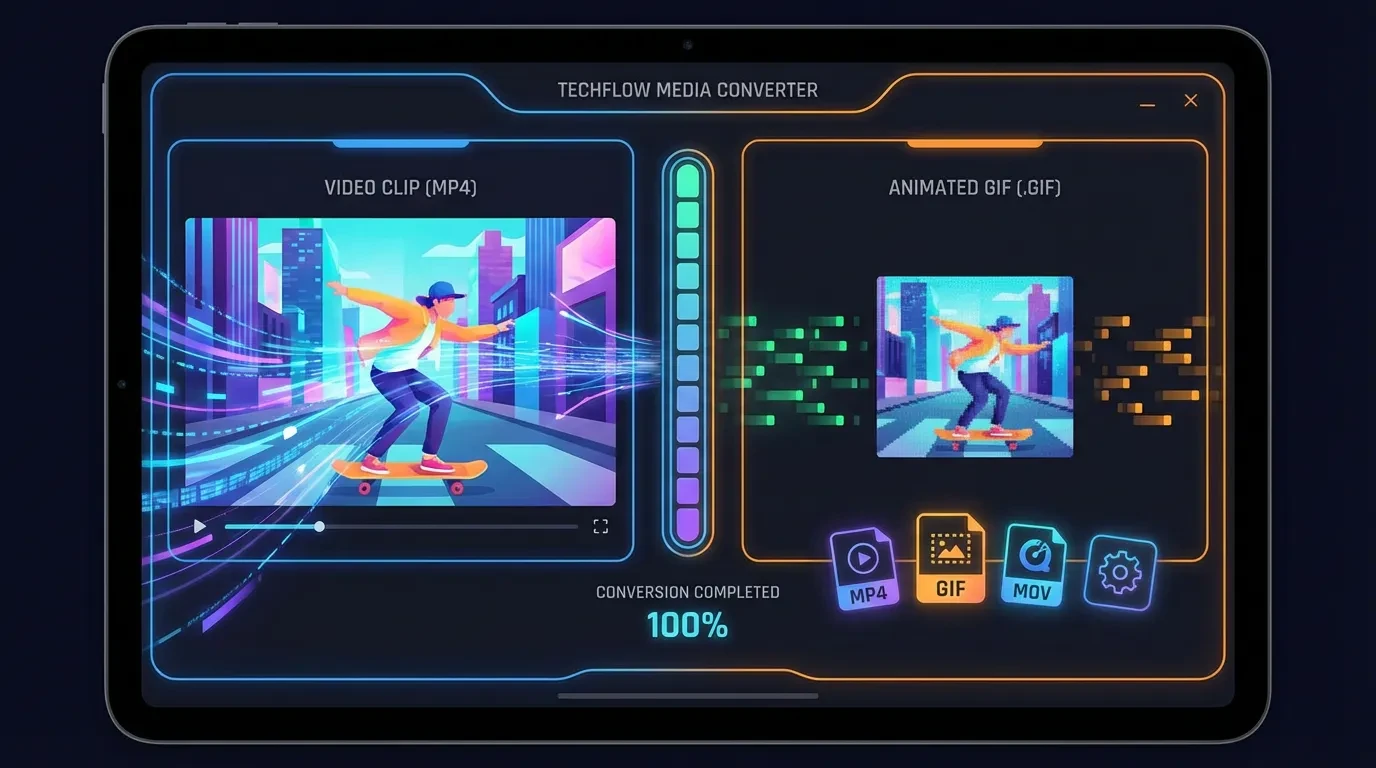
The fastest way to convert any video to GIF is with Fizzly's free Video to GIF converter:
- Open the tool — No account or signup required
- Upload your video — Drag and drop any MP4, WebM, or MOV file
- Set the clip range — Choose your start and end points
- Adjust settings — Set frame rate, dimensions, and quality
- Convert and download — Get your GIF instantly
The entire process runs in your browser — your video never leaves your device, so it's completely private.
Understanding GIF File Sizes
The biggest challenge with GIFs is file size. Unlike modern video formats that use inter-frame compression, GIFs store each frame individually. This means:
| Factor | Impact on File Size |
|---|---|
| Resolution | 2x width = ~4x file size |
| Frame rate | 30fps = 2x file size vs 15fps |
| Duration | Linear — 10s = 2x file size vs 5s |
| Color complexity | More colors and gradients = larger files |
| Motion amount | High motion = more unique pixels per frame |
Recommended Settings by Use Case
Social media posts (Twitter, Reddit, Discord):
- Width: 480px
- Frame rate: 12-15 fps
- Duration: 3-6 seconds
- Target size: Under 5MB
Product demos and tutorials:
- Width: 640-800px
- Frame rate: 15-20 fps
- Duration: 5-15 seconds
- Target size: Under 10MB
Email and messaging:
- Width: 320-480px
- Frame rate: 10-12 fps
- Duration: 2-5 seconds
- Target size: Under 2MB
High quality / portfolio:
- Width: 800-1080px
- Frame rate: 24-30 fps
- Duration: 3-10 seconds
- Target size: Under 15MB
Step-by-Step: Creating the Perfect GIF
Step 1: Prepare Your Video
Before converting, consider trimming your video to just the section you need. You can use our free Video Trimmer to cut your clip to the exact frames you want.
Tips for source video:
- Shorter is better — Aim for 2-8 seconds for most GIFs
- Stable footage — Handheld shake creates more unique pixels per frame, increasing file size
- Simple backgrounds — Solid or static backgrounds compress much better
- Good lighting — Well-lit footage produces cleaner, smaller GIFs
Step 2: Choose Your Settings
Frame rate is the biggest lever for file size. Most GIFs look good at 12-15 fps — the slight choppiness is expected and even adds to the GIF aesthetic. Only use 24+ fps for smooth motion where quality is critical.
Resolution should match your distribution channel. A 480px wide GIF looks sharp on most screens and keeps file sizes manageable. There's rarely a reason to go above 800px.
Dithering helps GIFs look better with gradients and photographs. GIF format only supports 256 colors, so dithering adds pixel patterns to simulate additional colors. Enable it for photographic content; disable for screen recordings and flat graphics.
Step 3: Optimize for Perfect Loops
Perfect loops make GIFs more engaging. To create a seamless loop:
- Find a segment where the first and last frames are visually similar
- Trim to match natural motion cycles (walking steps, spinning objects, repeating patterns)
- For talking/reaction GIFs, find natural pause points at start and end
- Test the loop by previewing before downloading
Step 4: Post-Processing
If your GIF is too large, try these optimizations in order:
- Reduce frame rate — Drop from 15 to 12 fps (saves ~20% with minimal visible difference)
- Reduce dimensions — Scale from 640px to 480px (saves ~40%)
- Shorten duration — Cut unnecessary frames from start or end
- Reduce colors — Drop from 256 to 128 colors (noticeable on photos, less so on graphics)
When to Use GIF vs. Other Formats
GIF isn't always the best choice. Here's when to use alternatives:
| Format | Best For | Max Size | Animation | Browser Support |
|---|---|---|---|---|
| GIF | Short clips, memes, reactions | 256 colors, large files | Yes | Universal |
| WebP | Same as GIF but smaller | Millions of colors | Yes | Modern browsers |
| MP4 (video) | Longer clips, high quality | Full color, small files | Yes (video) | Universal |
| APNG | Transparency + animation | Full color | Yes | Most browsers |
Use GIF when:
- Sharing on platforms that don't support video (some forums, email)
- Maximum compatibility is needed
- Creating memes and reaction content
- File is under 5MB
Use MP4 instead when:
- Duration is over 10 seconds
- High quality is important
- The platform supports auto-playing video
- File size must stay small
For video format conversion, use our free Video Converter.
Platform-Specific Tips
Twitter / X
- Max GIF size: 15MB (5MB recommended)
- Auto-plays in timeline
- Tip: Keep under 480px wide and 6 seconds for best engagement
Discord
- Max GIF size: 8MB (without Nitro)
- Displays inline in chat
- Tip: 320px wide, 10-12 fps for chat reactions
- Upload as video for better quality (Reddit converts GIFs to video anyway)
- Direct GIF links from Imgur/Giphy work in comments
- Tip: Use Reddit's native video upload for posts
- Many clients block GIFs over 1MB
- Gmail supports GIFs up to 25MB (attachment limit)
- Tip: Keep under 500KB for reliable display across all clients
Slack
- Max 128MB file upload
- Displays inline with auto-play
- Tip: Keep under 5MB for fast loading in channels
Creating GIFs from AI-Generated Videos
A powerful workflow combines AI video generation with GIF conversion:
- Generate a video with our AI Video Generator — create short clips from text or images
- Trim the best segment with Video Trimmer
- Convert to GIF with Video to GIF
This lets you create completely original GIF content — no stock footage or screen recording needed.
Troubleshooting Common Issues
GIF is too large
- Reduce resolution to 480px or lower
- Drop frame rate to 10-12 fps
- Shorten the clip duration
- Use fewer colors (128 instead of 256)
GIF looks pixelated or banded
- Enable dithering for photographic content
- Increase the color palette to 256
- Don't over-compress — some file size is unavoidable for quality
GIF doesn't loop properly
- Ensure first and last frames are visually similar
- Trim to natural motion cycle boundaries
- Check that the loop setting is enabled (not "play once")
Colors look wrong
- GIF is limited to 256 colors — gradients will band
- Enable dithering to simulate smooth gradients
- For color-critical content, consider WebP or MP4 instead
Free Tools Summary
All of these tools run entirely in your browser with no signup required:
| Tool | What It Does |
|---|---|
| Video to GIF | Convert any video to animated GIF |
| Video Trimmer | Cut videos to exact clip length |
| Video Converter | Convert between MP4, WebM, MOV |
| Video Compressor | Reduce video file size |
| Image Compressor | Compress images for web |
All processing happens locally in your browser — your files are never uploaded to our servers.
Get Started
Ready to convert your first video to GIF? Head to our free Video to GIF converter — no account needed. Upload any video and have your GIF in seconds.
For creating original animated content, try our AI Video Generator to generate short clips from text prompts or images, then convert to GIF for sharing anywhere.